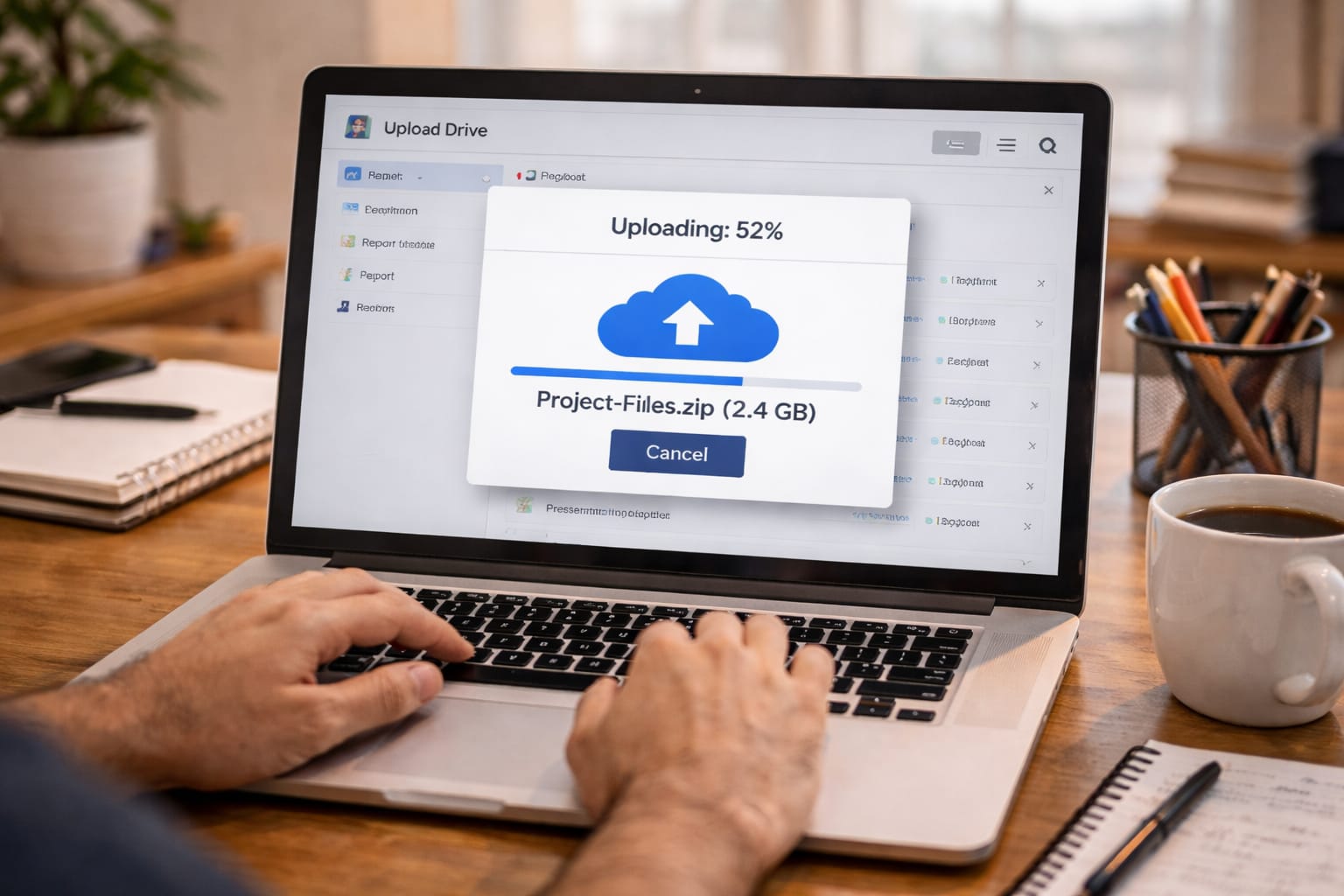
Backing up your files is one of the most important habits for students, freelancers, and small businesses in India. Whether you store project files, resumes, assignments, photos, client documents, or business data, a sudden laptop crash or phone loss can instantly wipe everything.
Cloud storage solves this problem. Instead of storing your data only on your device, you can upload it safely to services like Google Drive, Dropbox, OneDrive, Mega, iCloud, and more.
This step-by-step guide explains how to backup files in cloud, which platforms to use, how to organise your data, safety tips, and real examples—all in simple Indian English.
What is Cloud Backup?
Cloud backup means saving your files, photos, documents, or folders online instead of storing them only on your device. You can access them anytime from any device using the internet.
Cloud backup helps you:
- Save your important data
- Recover files if your device breaks
- Store large files
- Share files easily
- Protect data from loss or damage
Perfect for students, freelancers, small businesses, and remote workers.
Why Cloud Backup is Important in India
- Laptops crash frequently
- Phones get lost or damaged
- Pen drives get corrupted
- Students need assignment backup
- Freelancers need client file security
- Small businesses need safe digital storage
- Multiple-device access is becoming essential
Cloud storage is affordable, easy, and safer than physical drives.
Step-by-Step Guide: How to Backup Files in Cloud Safely
Below is the complete, A-to-Z method anyone in India can follow.
Step 1: Choose a Reliable Cloud Storage Service
Select a platform based on your needs.
Top Cloud Options in India
- Google Drive (15GB free) – Best for students
- Dropbox (2GB free) – Best for sharing files
- OneDrive (5GB free) – Best for Windows users
- Mega (20GB free) – Best for privacy
- iCloud (5GB free) – Best for Apple users
Pick one or use multiple based on your storage needs.
Step 2: Create an Account
Most services only require:
- Name
- Mobile number (optional)
Verify with OTP if required.
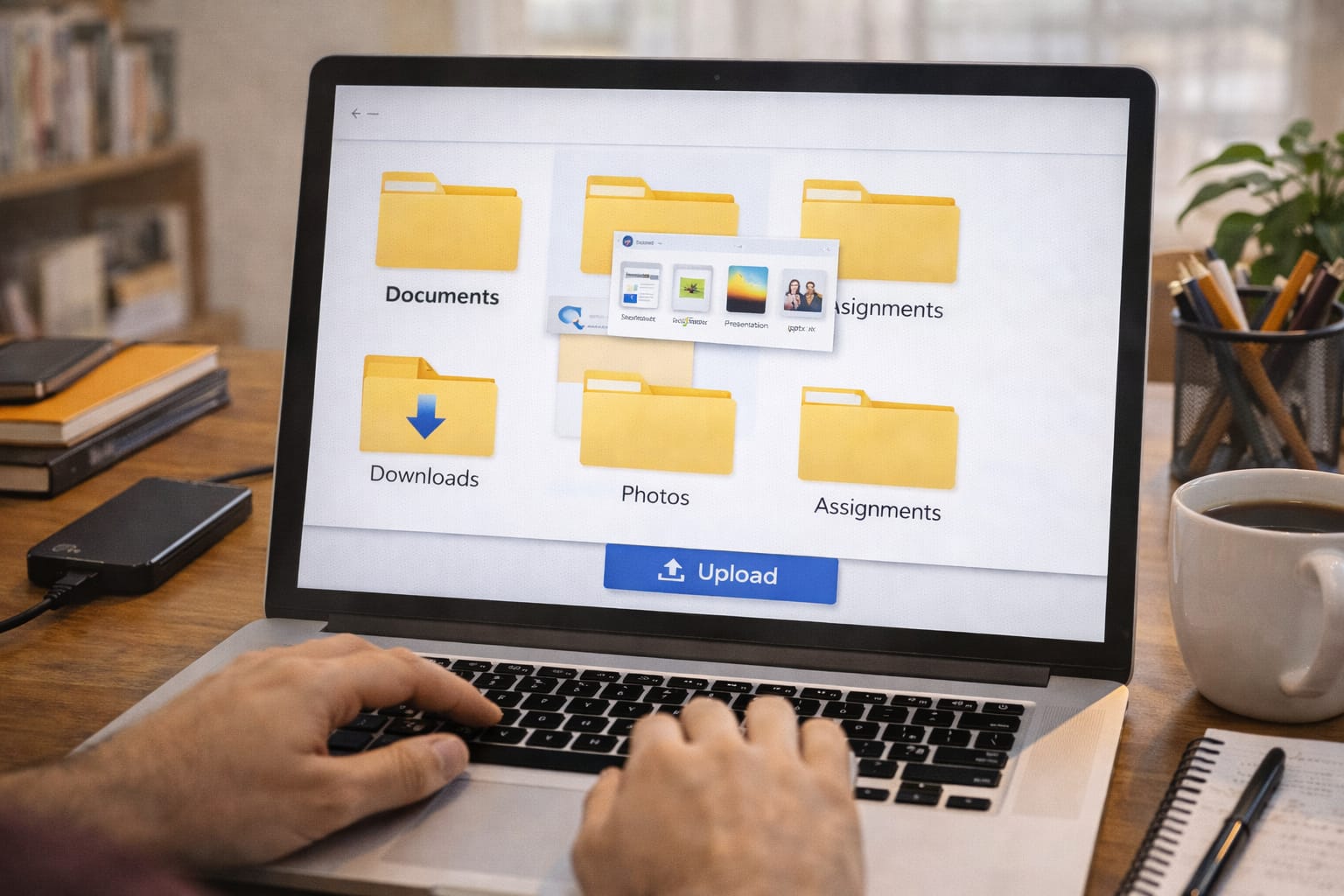
Step 3: Organise Your Files Before Uploading
Before backing up, create folders such as:
- College Notes
- Assignments
- Project Reports
- Business Documents
- Freelance Work
- Photos & Videos
Organised folders make recovery easier.
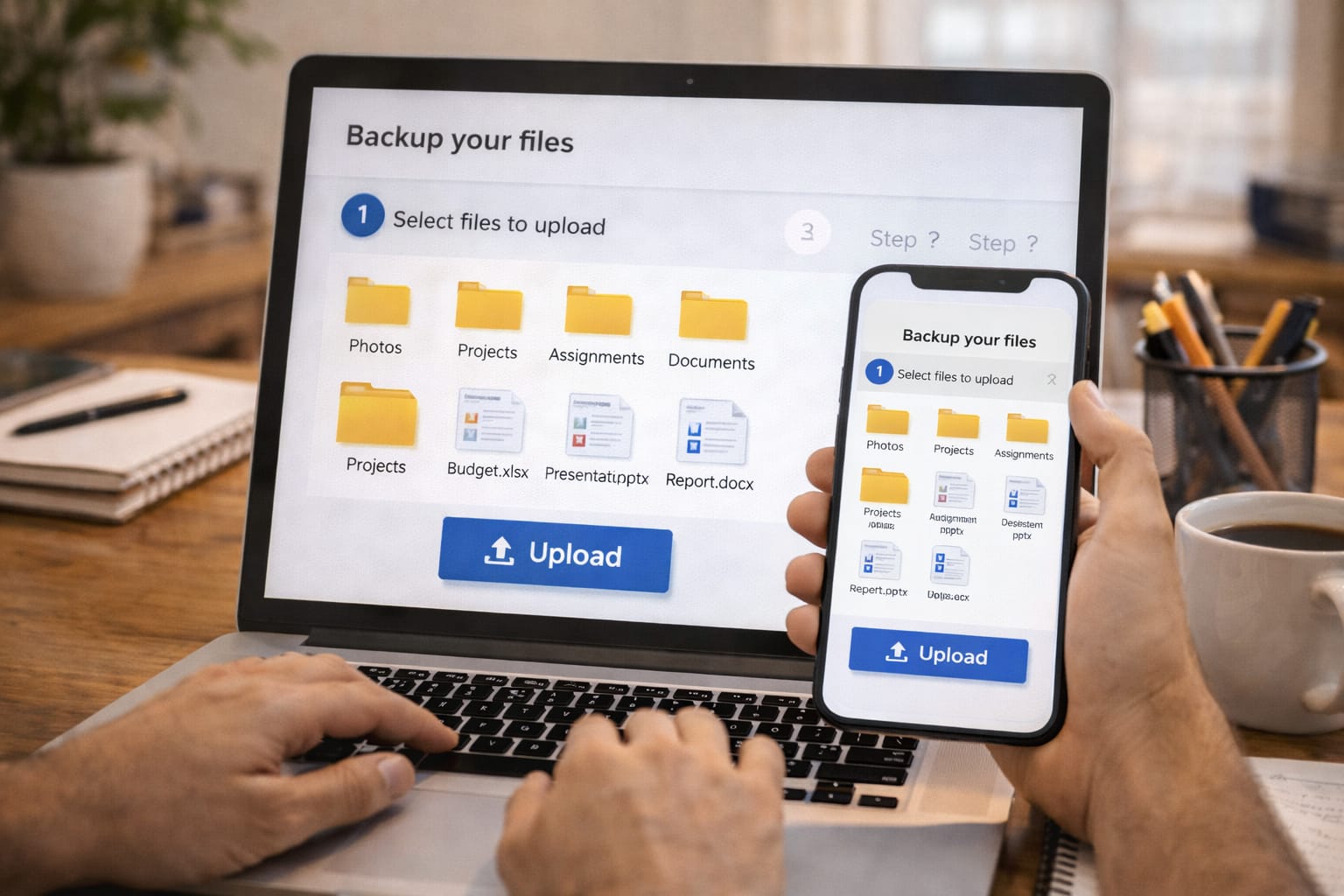
Step 4: Upload Files Manually
This is the simplest way.
On Laptop:
- Open Google Drive/Dropbox/OneDrive
- Click “New” or “Upload Files”
- Select the files or folders
- Upload
On Mobile:
- Install the cloud app
- Tap “Upload”
- Choose gallery/files
- Done
Step 5: Enable Automatic Backup (Recommended)
This ensures your files are always saved.
Mobile Auto Backup Includes:
- Photos
- Videos
- WhatsApp media
- Downloads
Laptop Auto Backup Includes:
- Desktop
- Documents
- Pictures
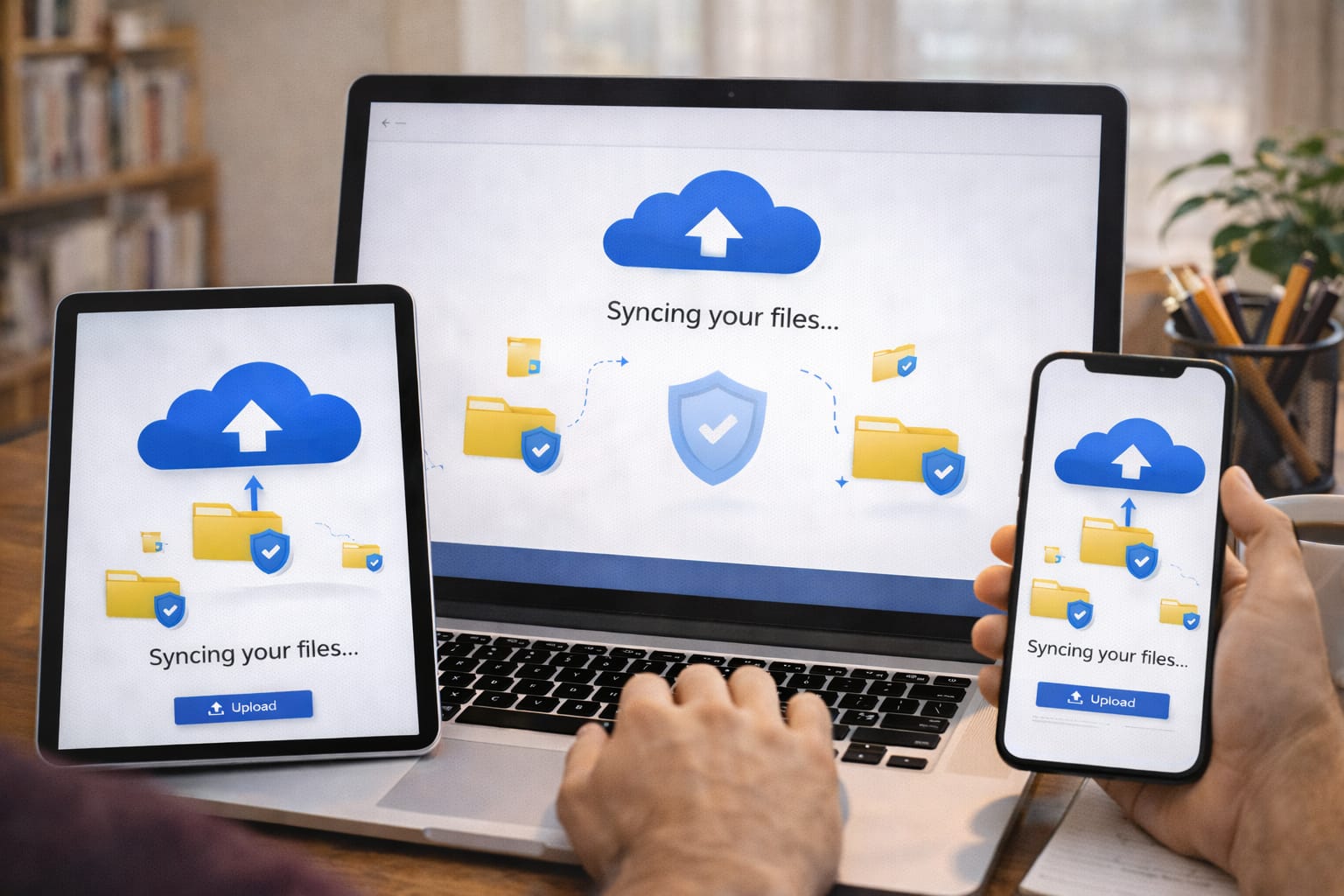
Google Drive and OneDrive both support auto-sync.
Step 6: Sync Important Folders
Use desktop sync apps to auto-upload everything.
Examples:
- Google Drive for Desktop
- OneDrive Sync
- Dropbox Desktop
Syncing keeps your local file and online file updated.
Step 7: Set Cloud Security Settings
To keep your files safe:
Enable:
- Two-factor authentication (OTP login)
- Secure passwords
- Login alerts
- Device management
This prevents unauthorized access.
Step 8: Check Storage Usage Regularly
If your storage gets full, you can:
- Delete duplicates
- Compress files
- Move large videos to external drive
- Upgrade to a paid plan
Backing Up 5GB of College Project Files
A B.Tech student has 5GB of project material (PPTs, PDFs, code folders, videos).
Manual Backup Steps:
- Folders arranged on laptop
- Drive sync app installed
- Auto-backup turned on
- 5GB uploaded in 12 minutes on 50 Mbps internet
Cloud Cost Comparison Table (India)
| Cloud Service | Free Storage | Paid Storage (100GB) | Notes |
| Google Drive | 15GB | ₹130/month | Best value |
| Dropbox | 2GB | ₹720/month | Best sharing features |
| OneDrive | 5GB | ₹140/month | Includes MS Office |
| Mega | 20GB | ₹399/month | Best privacy |
| iCloud | 5GB | ₹75/month | Best for iPhone users |
Ownership Cost Example
| Service | Storage | Yearly Cost | Extra Benefits | Total |
| Google Drive | 100GB | ₹1,560 | Family sharing | ₹1,560 |
| OneDrive | 100GB | ₹1,680 | MS Office | ₹1,680 |
| iCloud | 200GB | ₹2,700 | Apple sync | ₹2,700 |
This helps Indian students and small businesses plan better.
Pros & Cons of Cloud Backup
Pros
- Files stay safe forever
- No risk of physical damage
- Access anywhere
- Easy file sharing
- Auto-backup options
- Large storage available
Cons
- Requires internet
- Free plans have limits
- Security depends on password strength
- Upload speed depends on connection
Tips for Safe Cloud Backup
- Always enable 2FA
- Never share your cloud password
- Keep backup copies of very important files
- Don’t store sensitive files without encryption
- Use folder names that are easy to remember
- Backup at least once a week
Conclusion
Cloud backup is essential for students, freelancers, creators, and small businesses in India. It ensures that your important files—notes, presentations, documents, data, and photos—remain safe, organised, and accessible anytime.
FAQs
Q. What is the safest way to back up files in the cloud?
A. The safest way is to use trusted cloud services like Google Drive, OneDrive, or Dropbox with two-factor authentication (2FA) enabled. Organise files into folders and turn on auto-backup for photos, videos, and documents.
Q. How can I back up files to the cloud for free?
A. You can use free cloud storage options such as:
Google Drive – 15 GB free
MEGA – 20 GB free
OneDrive – 5 GB free
Dropbox – 2 GB free
Upload files manually or enable auto-sync for continuous backup.
Q. Is cloud backup safe for personal files?
A. Yes. Cloud services use encryption and security protocols to protect your data. For extra safety, enable OTP/2FA login, use strong passwords, and avoid sharing private file links publicly.
Q. Should I store my college or office work in the cloud?
A. Absolutely. Cloud backup keeps your documents, PPTs, reports, and work files safe from accidental loss and allows access from any device, anywhere.
Q. How often should I back up my files?
A.
Students & freelancers: Weekly backups
Businesses: Daily backups or real-time auto-sync
Regular backups ensure your data is always protected.